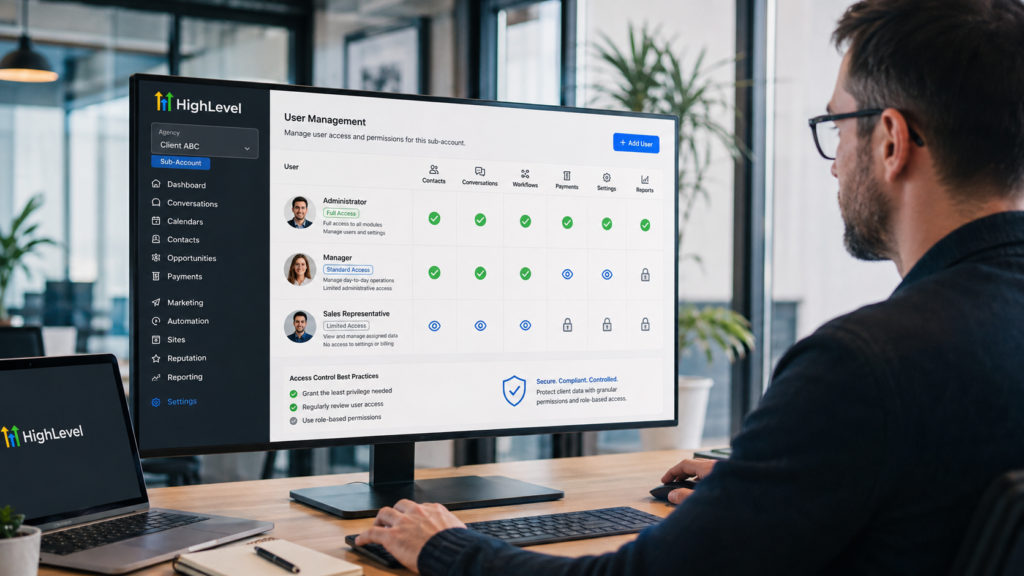
GoHighLevel Sub Account User Permission Setup
For a secure GoHighLevel sub-account user permission setup, enter the correct sub-account, go to Settings → My Staff, add or edit the staff member, open Roles & Permissions, choose Admin or User, enable only the modules and actions required for the job, decide whether to use Only Assigned Data, and save. Then test the account from that user’s perspective before giving them real responsibilities.
This guide turns GoHighLevel sub account user permission setup into a repeatable access review rather than a row of toggles. It covers sub-account staff who work inside one client location and also explains when an agency-level Account user is more appropriate. For other access and configuration issues, return to the GoHighLevel troubleshooting hub.

The Five Layers of HighLevel Access
Permission problems are easier to solve when you identify the controlling layer. A user can be assigned to the right account yet still lack a module, or see a module yet be restricted to assigned records.
| Control | Question it answers | Common mistake |
|---|---|---|
| User type | Does this person operate at agency scope or account scope? | Giving agency access to someone who needs only selected client locations. |
| Role | Should the person administer the assigned scope or work within configured limits? | Using Admin as a shortcut when one extra permission is missing. |
| Sub-account assignment | Which client locations can the person enter? | Assigning every location to a contractor or specialist. |
| Module and granular permissions | Which features and actions can the person use? | Allowing Payments or Settings when the job needs only conversations. |
| Data visibility | Can the person see all allowed records or only assigned data? | Assuming a visible Contacts module automatically limits records by owner. |
Choose the Correct Access Route
Sub-account staff member
Use Sub-account → Settings → My Staff when the person works inside that client location. This is the typical route for the client owner, office manager, receptionist, sales representative, fulfillment employee, or location-specific contractor.
Team member managing several client locations
Use Agency View → Settings → Team, choose the Account user type, and assign only the required sub-accounts. This can let a specialist work across selected locations without giving full agency access.
Agency administrator
Reserve agency Admin access for trusted operators who genuinely need broad agency functions. The agency Owner has additional authority and should not be treated as an ordinary working login.
Step-by-Step Sub-Account Permission Setup
- Enter the correct sub-account. Confirm the client or location name before editing staff. Similar account names are a common operational risk.
- Open Settings → My Staff. This list contains users who can operate in the location.
- Add or edit the user. Choose + Add Employee for a new person or the pencil icon for an existing staff member. Use the person’s individual business email rather than a shared password.
- Complete the user profile. Confirm name, email, phone, and other requested details. Avoid creating duplicate users for the same person unless there is a documented identity requirement.
- Open Roles & Permissions. Select Admin only when the person must administer most of the sub-account. Otherwise choose User and configure the work-specific options.
- Set module visibility. Enable Conversations, Contacts, Opportunities, Calendars, Marketing, Workflows, Sites, Payments, AI features, Settings, Reporting, or other modules only when they support an assigned responsibility.
- Review granular actions. Where HighLevel provides view, create, edit, delete, export, manage, or similar controls, separate routine work from destructive or financially sensitive actions.
- Choose the data visibility scope. Turn on Only Assigned Data when the person should see only records tied to them rather than the full location database.
- Save the configuration. Record the intended role profile and approval owner outside the user’s free-text name.
- Test the result. Verify permitted tasks and confirm restricted modules, records, exports, settings, and financial actions are unavailable.
What “Only Assigned Data” Actually Changes
HighLevel’s assigned-data control is useful for salespeople, appointment setters, account representatives, and contractors. When enabled, the user generally sees contacts assigned to them, opportunities they own, and appointments or tasks linked to them.
It is not a universal security switch for every object in the platform. Dashboards, pipelines, shared assets, module-specific permissions, and other features can have their own access rules. Test the exact screens and reports the user will use.
Practical Permission Profiles
Use these as starting points, not universal presets. Exact responsibilities differ by business, and HighLevel adds granular controls over time.
| Role profile | Typical access | Usually restricted |
|---|---|---|
| Client owner | Broad sub-account visibility, reporting, users, settings, integrations, and business operations. | Agency billing, unrelated locations, agency-only controls. |
| Location manager | Contacts, conversations, opportunities, calendars, reporting, and selected team controls. | High-risk integrations, account transfer, sensitive billing, unnecessary deletion. |
| Sales representative | Assigned contacts, conversations, opportunities, tasks, and appointments. | All-location data, bulk export, workflows, websites, payments, settings. |
| Receptionist or scheduler | Contacts, conversations, calendars, appointments, and limited opportunities. | Marketing configuration, workflows, financial settings, integrations. |
| Marketing contractor | Selected marketing, forms, funnels, reporting, and assets required by the engagement. | Payments, phone configuration, client-wide exports, user administration. |
| Bookkeeper | Required invoices, transactions, estimates, or payment views with the narrowest suitable actions. | Conversations, workflows, marketing, account settings, refunds if not authorized. |
High-Risk Permissions to Review Separately
Payments and refunds
Payment permissions can be granular. Separate the ability to view transactions, create invoices, manage products, issue refunds, or change integrations. Financial access should match written responsibility and approval thresholds.
Exports
Export access can turn an ordinary reporting permission into the ability to remove a large dataset from the platform. Review dashboard and contact export controls independently from on-screen visibility.
Workflows and bulk communication
A user who edits or publishes workflows can affect thousands of contacts. Give view or editing access only where necessary, and require a test and approval process for outbound automation.
Settings, integrations, and credentials
These areas may affect domains, phone services, email sending, payment providers, APIs, and other business-critical connections. Do not enable Settings simply because a person occasionally needs one configuration changed.
Snapshots and cross-account deployment
Snapshot permissions can control who creates, shares, loads, or pushes reusable systems. If a team member needs this responsibility, also review which destination accounts they can access. The preceding guide explains how to build and transfer custom GoHighLevel snapshots safely.
Copy Permissions Without Copying Mistakes
HighLevel can copy permissions from an existing user. In Settings → My Staff, add or edit the destination user, open Roles & Permissions, select Copy Permissions, choose the source user, and apply the set.
This is useful for repeatable roles such as sales representatives. It should not replace review. Confirm that the source user still represents the approved role, then check assigned-data scope and any user-specific account or asset permissions.
Test the User’s Effective Access
A permission setup is complete only after an effective-access test. An agency Admin can use HighLevel’s Login As User capability to inspect a user experience without requesting that person’s password. Test safely and avoid making live changes while impersonating unless the task is authorized.
- Confirm the user lands in the intended sub-account.
- Verify every required module is visible.
- Complete one normal job task, such as updating an assigned opportunity.
- Confirm unassigned records are hidden when Only Assigned Data is enabled.
- Check that exports, payments, settings, user management, and destructive actions match policy.
- Test mobile access if the staff member uses the HighLevel app.
- Ask the user to confirm their workflow after first login.
Permission Troubleshooting Matrix
| Symptom | Likely cause | What to inspect |
|---|---|---|
| User cannot see a module | Module permission is disabled | My Staff → Roles & Permissions and any parent feature control. |
| User sees module but not a record | Only Assigned Data or asset-level restriction | Contact owner, opportunity owner, appointment assignment, pipeline/dashboard permissions. |
| User sees too many client accounts | Wrong user type or broad sub-account assignment | Agency Team settings and assigned locations. |
| Permission toggle is on but action is unavailable | Parent permission, plan, feature, or higher-level restriction | Module hierarchy, SaaS plan feature limits, sub-account product settings. |
| New salesperson receives no leads | Assignment automation was not updated | Workflow users, round robin, calendars, opportunity ownership. |
| User can view payments but should not refund | Granular payment actions too broad | Expand Payments permissions and reduce manage/refund capability. |
Quarterly Access Review and Offboarding
Permissions drift as people change roles. Review active users quarterly and immediately when a client, employee, or contractor leaves.
- Confirm employment or vendor status
- Review assigned sub-accounts
- Compare role with current duties
- Review Admin users first
- Inspect exports and financial permissions
- Review API and integration ownership
- Reassign contacts and opportunities
- Reassign calendars and tasks
- Remove or disable departed users
- Document reviewer and date
Before removing a departing user, transfer any business-owned assets, assignments, calendars, workflows, notifications, and administrative responsibilities. Do not leave automation pointing to an inactive staff member.
Give Clients a Controlled GoHighLevel Workspace
GoHighLevel combines CRM records, conversations, calendars, automations, funnels, payments, and role-based access in one platform. Explore the current trial and decide whether it fits your agency or local-business operations.
Try GoHighLevel Free for 14 Days
Frequently Asked Questions
Where are sub-account user permissions in GoHighLevel?
Enter the sub-account and go to Settings → My Staff. Add or edit a user, then open Roles & Permissions.
What is the difference between a GoHighLevel Admin and User?
An Admin has broader authority within the assigned scope. A User operates within configured module, action, account, and data limits. Always confirm whether the person is an agency-level or account-level user.
What does Only Assigned Data do?
It restricts relevant visibility to records assigned to the user, including assigned contacts, owned opportunities, and linked appointments or tasks. Other assets can have separate permission rules.
Can one user access multiple sub-accounts without agency access?
Yes. An agency administrator can create an Account-type user and assign only the required sub-accounts.
Can I copy permissions from another user?
Yes. The Copy Permissions control can duplicate an existing user’s permission configuration, but the result should still be reviewed.
Why can a user not see an assigned lead?
Check the actual contact and opportunity ownership, calendar or task assignment, workflow assignment step, module access, and any asset-level permissions.
Should every client owner be a sub-account Admin?
Often the owner needs broad account control, but the correct role depends on the management agreement and responsibilities. Do not grant more access than the person needs merely because of their title.
Final Permission Setup Checklist
- Correct sub-account confirmed
- Individual user identity used
- User type and role verified
- Required modules enabled
- Granular actions reviewed
- Assigned-data scope chosen
- Financial and export access reviewed
- User-view test completed
- Access owner documented
- Review date scheduled
A dependable GoHighLevel sub-account user permission setup combines least privilege, clear assignments, module controls, data visibility, and real user-view testing. For related configuration fixes, visit the GoHighLevel troubleshooting guide.
Affiliate disclosure: Local Resource Hub may earn a commission if you purchase through the GoHighLevel link on this page, at no additional cost to you. Recommendations are based on the features discussed in this guide.