Important: The PayPal button normally does not appear while you are editing the funnel. Check Preview or the published page. If the order form was added before November 1, 2024, HighLevel recommends deleting that element and adding a new one so it supports PayPal.
This tutorial is part of the GoHighLevel troubleshooting hub. It covers the entire customer path—credentials, provider settings, funnel element, product, live checkout, transaction record, and automation—because an integration is not truly finished until a buyer can pay and receive the promised next step.
What the PayPal connection actually does
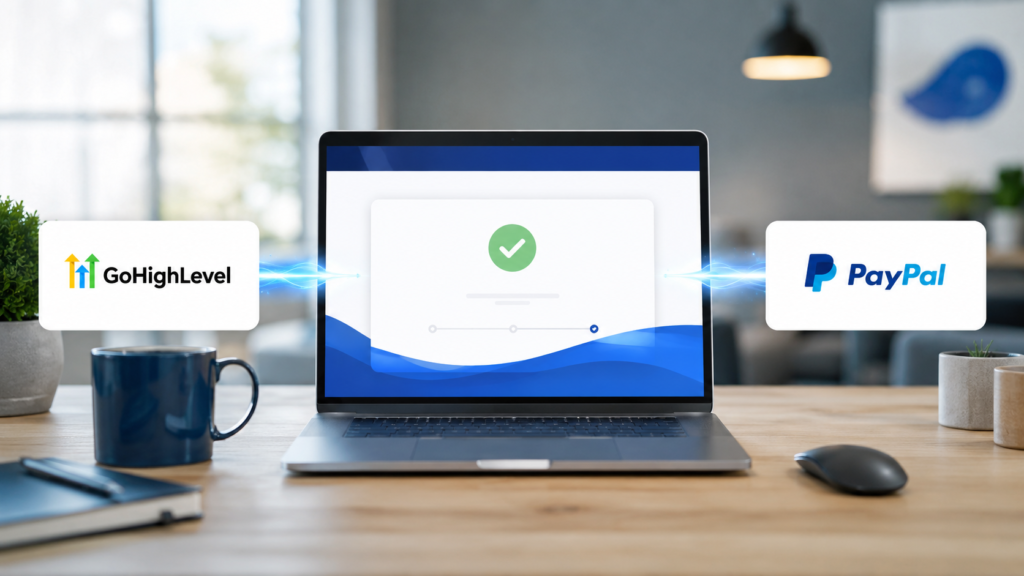
Three separate components must agree. PayPal authenticates the merchant and processes the transaction. HighLevel stores the provider connection inside a location and records the order. The funnel presents an eligible order form with a valid product. Connecting the provider without configuring the funnel leaves buyers with nothing to purchase; building an order form without a connected provider leaves checkout unable to collect money.
Chooses a product and selects PayPal on the live funnel.
Authenticates the buyer and processes the approved transaction.
Records the customer, order, and payment status in the location.
Runs the receipt, notification, access, or post-purchase workflow.
PayPal may be used by itself or beside one other supported processor on eligible HighLevel channels. That makes the preceding guide to GoHighLevel Stripe sub account integration setup useful if you want to offer both card checkout and PayPal. The two connections remain separate; you do not connect PayPal through Stripe.
Preflight: collect the right accounts before clicking Connect
Complete this five-minute check before creating credentials:
- Correct HighLevel location: confirm the client or business sub-account that owns the funnel.
- PayPal business account: use the merchant account that should receive customer funds, not a personal buyer account.
- Account ownership: the business should control the PayPal login and recovery methods.
- Business readiness: resolve identity, banking, limitation, or compliance notices in PayPal.
- Checkout details: know the product, price, currency, billing frequency, refund policy, and fulfillment action.
Credential safety: A PayPal Secret is sensitive. Enter it only in the intended HighLevel integration screen. Do not paste it into a funnel custom-code block, workflow, email, shared document, or support screenshot.
Create the PayPal Client ID and Secret
HighLevel uses credentials from a PayPal developer application. The exact labels in PayPal may shift, but the practical sequence is:
- Sign in to the PayPal Developer Dashboard with the merchant’s PayPal business account.
- Open Apps & Credentials.
- Select the Live environment for production checkout.
- Create a REST app, or open the dedicated app you intend to use for HighLevel.
- Give it a clear internal name, such as the business name plus “HighLevel.”
- Copy the Client ID.
- Reveal and securely copy the Secret.
Sandbox credentials are appropriate for a sandbox integration only. They will not create real customer payments. Before launch, verify that both values came from the same Live app. Mixing a sandbox Client ID with a live Secret, or credentials from two different apps, produces authentication errors that can look like a HighLevel problem.
Use a dedicated app instead of recycling credentials blindly
A clearly named PayPal app makes future maintenance easier. The account owner can identify what depends on the credentials, rotate a compromised secret with less guesswork, and avoid breaking unrelated software. Record the app name and owner in a private operations document, but never record the Secret in plain text.
How to connect PayPal to GoHighLevel funnel payments
Step 1: Enter the intended sub-account
From Agency View, open the location that contains the funnel. Confirm the location name before continuing. Payment providers are location-specific, so a successful connection in a template, test account, or another client’s location does not enable PayPal on the production funnel.
Step 2: Open the payment integrations
Payments → Integrations → PayPal
Select the option to connect or configure PayPal. Paste the Live Client ID and Secret into their matching fields, review the values for accidental leading or trailing spaces, and save.
Step 3: Confirm the connected status
Return to the integrations screen and verify that PayPal shows as connected. If HighLevel provides provider-management or channel controls, review them now. A connected badge confirms that credentials were accepted; it does not prove that the right PayPal business receives funds or that the funnel element is compatible.
Step 4: Choose providers for the funnel channel
Current HighLevel payment settings can allow providers to be configured by channel. Channel-level choices override the global default. For eligible funnel one-step and two-step order forms, you may select PayPal alone or PayPal plus one other connected provider. Multiple non-PayPal providers cannot generally be combined in the same channel configuration.
If PayPal is connected but absent from checkout, inspect the funnel channel’s selected providers before regenerating credentials. A valid connection can still be excluded from a particular checkout channel.
Configure the order form inside the funnel
Use an eligible order-form element
Open Sites → Funnels, choose the funnel and checkout step, and enter the page editor. Add either a one-step order form or two-step order form. Those current funnel elements support PayPal. A normal contact form, survey without payment collection, or standalone button does not become a PayPal checkout simply because the provider is connected.
If an older order form is already on the page and PayPal never appears, note its creation date. HighLevel specifically advises removing order forms added before November 1, 2024 and adding a fresh element. Duplicating an outdated funnel step may preserve the outdated component, so replace the element itself.
Add and verify the product
Connect the intended HighLevel product to the funnel step. Verify:
- Product name, description, image, and customer-facing terms
- One-time price or recurring billing schedule
- Amount and currency supported by the merchant account
- Tax, coupon, trial, and order-bump behavior
- Required billing and contact fields
- Success-page destination and post-purchase instructions
Save the element, save the page, and publish or update the funnel step. Then leave the editor and use Preview or the public URL. HighLevel’s builder may not render the PayPal button on the editing canvas, so the builder is the wrong place to decide whether the integration works.
Commission the checkout with an end-to-end test
Do not stop at seeing the PayPal logo. A launch test should prove that a real approved transaction travels through every operational layer. If no dedicated sandbox path is configured for the exact checkout, create a low-value live product, use a separate buyer account, document the transaction, and refund it afterward when appropriate. Do not attempt to pay yourself with the same PayPal account that receives the funds.
- Open an incognito window on desktop. Load the published funnel and confirm product, amount, currency, policies, and PayPal option.
- Repeat on a phone. Check that the button is visible, tappable, and not covered by custom CSS or a sticky element.
- Complete the PayPal flow. Use a legitimate buyer account and follow the approval process through the final confirmation.
- Inspect HighLevel. Confirm the contact, order, transaction status, selected product, and amount.
- Inspect PayPal. Confirm the merchant received the matching transaction in the intended business account.
- Verify fulfillment. Check the receipt, internal notification, tag, opportunity update, membership access, appointment state, or delivery workflow.
- Test the refund process. Confirm staff knows where to issue it and where the updated status appears.
Launch evidence to retain
Record the date, location, funnel URL, product, amount, PayPal app name, HighLevel transaction identifier, PayPal transaction identifier, automation result, and refund result. Never include the Secret.
PayPal funnel troubleshooting by symptom
| Symptom | Most likely layer | First checks |
|---|---|---|
| PayPal will not connect | Credentials | Live versus sandbox, matching app, copied values, account limitations, spaces, and correct sub-account |
| Connected, but no PayPal button | Channel or element | Preview/live page, selected channel providers, current one/two-step order form, attached product, and published version |
| Button absent only in builder | Expected display behavior | Use Preview or public URL; do not diagnose solely from the editor canvas |
| Old funnel never shows PayPal | Legacy order form | Delete the old element and add a new order form, especially if added before November 1, 2024 |
| Buyer approves, but order fails | Product, currency, or merchant account | PayPal activity, account notices, product price, currency, browser console conflicts, and transaction logs |
| Payment succeeds, no workflow | Automation | Published workflow, Order Submitted/payment trigger, provider or product filters, execution logs, and contact record |
| PayPal appears on the wrong checkout | Provider/channel settings | Location, channel-specific provider selection, duplicated steps, and custom CSS that hides or exposes PayPal |
Check custom code before blaming the integration
Custom CSS and tracking scripts can hide, overlap, delay, or interfere with checkout components. Temporarily test a clean copy of the step without custom code. If PayPal works there, reintroduce changes one at a time. Old snippets designed to hide PayPal for affiliate payouts can intentionally suppress classes associated with the button and divider.
Reconnect only after you identify the credential layer
Disconnecting PayPal should not be the first response to a missing button. Provider connection, channel selection, element version, product configuration, publishing, and CSS are different layers. Reconnecting cannot repair an outdated order-form element. If credentials are truly invalid or compromised, create or rotate the Secret in PayPal, update HighLevel, and immediately rerun the complete live-path test.
Go-live checklist
- ☐ PayPal business account is verified and controlled by the merchant.
- ☐ Live Client ID and Secret come from the same dedicated PayPal app.
- ☐ PayPal is connected inside the correct HighLevel location.
- ☐ Funnel channel settings include PayPal.
- ☐ Checkout uses a current one-step or two-step order form.
- ☐ Product, price, currency, billing terms, and policies are correct.
- ☐ PayPal appears on the published desktop and mobile page.
- ☐ A real controlled payment is visible in HighLevel and PayPal.
- ☐ Fulfillment and refund behavior have been verified.
- ☐ No credentials appear in screenshots, code, or shared notes.
Want the payment tools and funnel builder in one platform?
GoHighLevel combines funnels, products, payment records, CRM follow-up, and automation. You can explore the platform with the available trial before moving a production checkout.
Affiliate disclosure: If you sign up through this link, Local Resource Hub may earn a commission at no additional cost to you.
Frequently asked questions
Can I use PayPal and Stripe on the same GoHighLevel funnel?
Yes, supported funnel order-form channels can offer PayPal alongside one other connected provider such as Stripe. Review the channel-level provider settings and test both payment paths before publishing.
Why can’t I see PayPal inside the funnel builder?
HighLevel indicates that PayPal buttons are visible in Preview or the live checkout rather than on the builder canvas. Save and publish the page, then test it outside the editor.
Which funnel elements support PayPal?
Current one-step and two-step order-form elements support PayPal for funnel and website checkout. A standard lead form or ordinary button is not a payment element.
Do I need a PayPal business account?
Use the verified merchant business account that should receive sales. The integration requires credentials from a PayPal developer app associated with that account.
Can PayPal process subscriptions in HighLevel?
PayPal support varies by HighLevel product area and payment use case, so check the current supported-provider matrix for the specific channel and test the exact recurring offer. Do not assume that support on a funnel order form means identical behavior everywhere in HighLevel.
Should I use sandbox or live PayPal credentials?
Use sandbox credentials only for a deliberately configured sandbox test. Production checkout requires the matching Client ID and Secret from the Live environment. Always verify the environment before launch.
What should I do if an older funnel does not display PayPal?
If the order form was added before November 1, 2024, delete that element and add a current one-step or two-step order form. Then attach the product, save, publish, and check Preview or the live URL.
Finish with proof, not a connected badge
The reliable way to connect PayPal to a GoHighLevel funnel is to validate each layer independently: merchant account, Live app credentials, location connection, channel setting, current order-form element, product, published page, approved payment, transaction record, and fulfillment. That approach turns a fragile checkout into a documented revenue process your team can support.
For broader help with funnels, communications, payment providers, and account configuration, return to the GoHighLevel troubleshooting guide.