The cleanest way to connect BatchLeads to GoHighLevel is to think in events rather than in “sync everything” terms. When a lead in your property-data workflow reaches a state that deserves human follow-up, send a small, controlled payload to a HighLevel Inbound Webhook workflow trigger. HighLevel receives the request, exposes the incoming fields for mapping, and can then create or update the CRM record, route the lead, create an opportunity, notify acquisitions, and begin the appropriate nurture sequence.
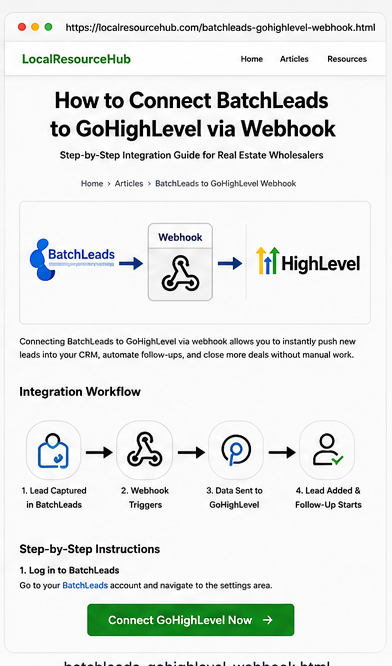
Architecture overview
A webhook is simply an HTTP request sent when an event occurs. The sender packages values into a request, often JSON, and posts them to a URL. HighLevel’s Inbound Webhook trigger creates a unique receiving URL for the workflow. Its documentation indicates that inbound requests can be accepted through common methods including POST, GET, and PUT, after which sample data can be selected and mapped for use in later workflow steps.
The critical implementation decision happens before you copy the URL: decide exactly which BatchLeads event should create the handoff. For example, you might send a lead only after it is tagged for outreach, after a list has been qualified, after a phone number has been validated, or after a record is manually pushed by a lead manager. Sending every property record creates noise and can turn the CRM into a second property database rather than a sales system.
Step 1: define your HighLevel data model first
Before receiving any payload, create the fields and pipeline stages the acquisition team will actually use. A practical seller lead model includes first name, last name, phone, email, property street, property city, state, ZIP, lead source, campaign or list, external source ID, seller motivation, timeline, asking price, occupancy, property type, estimated equity, acquisition owner, and a short data note. Not every record will contain every field, and that is fine.
Keep stable business concepts separate from ephemeral source data. “Lead Source” should not change simply because a lead moves into a different campaign. “External Source ID” should remain the same so repeated webhook events can update the same record. “Pipeline Stage” should reflect sales progress, not the quality score from the data provider.
| Incoming value | Suggested HighLevel destination | Why it matters |
|---|---|---|
| Seller first / last name | Contact name fields | Personalizes communication and call tasks. |
| Phone | Contact phone | Useful for matching and outbound follow-up. |
| Contact email | Secondary matching and nurture channel. | |
| Property address | Custom property fields | Prevents confusing mailing/contact address with subject property. |
| List / source | Lead source + campaign/list custom field | Preserves attribution. |
| BatchLeads record identifier | External source ID custom field | Supports idempotent updates and troubleshooting. |
| Property attributes | Selected custom fields | Gives acquisitions context without overwhelming the record. |
Step 2: create the HighLevel Inbound Webhook workflow
Open or create the workflow that should receive BatchLeads records. Add an Inbound Webhook trigger. HighLevel generates a unique webhook URL for that trigger. Copy the URL carefully and treat it like a credential: anyone who can submit valid requests to it may be able to start the workflow, so do not publish it in source code or public documentation.
At this point, HighLevel needs sample data. The receiving workflow cannot intelligently map a property address or source ID until it has seen the payload shape. Keep the workflow in a test-safe state. Do not enable seller SMS or email until the record mapping and duplicate logic are proven.
Step 3: configure BatchLeads or your middleware to send the event
If the relevant BatchLeads workflow in your account exposes a direct webhook or integration action, configure it to call the HighLevel inbound URL when your chosen business event occurs. Because third-party plans and integration menus change, use the current BatchLeads interface and documentation as the authority for where that sender configuration lives.
If your BatchLeads setup does not provide the event or payload control you need directly, place a middleware layer between the systems. The middleware listens for the available BatchLeads event or retrieves the approved record, transforms the fields, and sends a POST request to HighLevel. This is often useful because property-data fields may need to be renamed or flattened before a CRM workflow can use them.
A conceptual JSON payload can be kept intentionally small:
{
  "external_source_id": "BL-EXAMPLE-10482",
  "first_name": "Jamie",
  "last_name": "Seller",
  "phone": "+15555550123",
  "email": "test@example.com",
  "property_address": "101 Example Ave",
  "property_city": "Phoenix",
  "property_state": "AZ",
  "property_zip": "85001",
  "lead_source": "BatchLeads",
  "list_name": "Absentee High Equity"
}
The example is not a required BatchLeads schema. It illustrates the shape you want HighLevel to receive: predictable keys, consistent phone formatting, a stable external ID, clear property fields, and explicit attribution.
Step 4: test the trigger and capture sample data
Send one synthetic test record through the sender. In HighLevel, use the trigger’s testing interface to inspect the incoming data and save the desired sample. Check the values character by character. A phone number missing its country code or an address stored as one nested object can create mapping problems later. This is the moment to normalize data in the sender or middleware rather than layering brittle fixes across the CRM.
Do a second test with optional fields missing. Real wholesaling leads are imperfect. A workflow that assumes every record contains email, owner name, bedrooms, and estimated value will eventually fail. Design around the minimum viable seller record, then enrich it when more information is available.
Step 5: deduplicate before creating a new opportunity
Duplicate prevention is more important than adding another automation step. A seller may appear in multiple lists, own multiple properties, submit a form after being imported, or be resent after enrichment. Decide how HighLevel should distinguish people from properties. Phone and email are often useful for person-level matching, while the property address and external BatchLeads ID provide context for the specific opportunity.
A robust workflow checks whether an existing contact or opportunity already represents the event. If the contact exists, update relevant fields rather than blindly creating another contact. If an active opportunity already exists for that seller/property combination, update the opportunity or add a note instead of spawning another card. The exact implementation depends on your HighLevel configuration and available workflow actions, but the rule should be explicit.
Step 6: create or update the seller opportunity
Once the record is safe to process, put it into a seller pipeline stage that matches the handoff. If the webhook represents a newly qualified lead, “New Lead” or “Needs First Contact” may be appropriate. If the event represents an appointment-ready lead, place it later in the pipeline. Do not route every incoming webhook to the same stage unless the business event truly means the same thing.
Assign an acquisition manager using a clear rule: fixed owner by market, round-robin distribution, campaign ownership, or an existing contact owner. Then notify the assigned person with enough context to act. The notification should include seller name, phone, property address, lead source, and a direct link to the CRM record when available.
Step 7: start follow-up only after consent and source rules pass
A webhook can move faster than your compliance process, so separate data ingestion from messaging permission. Before sending automated SMS or email, confirm that the source and consent basis support the intended outreach and that your messaging configuration complies with applicable law, carrier policy, and platform requirements. A property-data record is not automatically equivalent to marketing consent.
For leads where the outreach basis is valid, design the first workflow around speed and ownership. Typical actions include an immediate internal alert, an initial acknowledgement when appropriate, a call task, a short retry sequence, and an exit condition when the seller replies or the opportunity advances. Older leads can be moved into a different long-term nurture workflow rather than receiving the same aggressive cadence indefinitely.
Step 8: log, monitor, and troubleshoot the integration
Production integrations fail in predictable ways: the sender changes a field name, the receiving URL is replaced, a phone number arrives malformed, a duplicate rule is too broad, or someone edits the workflow without realizing it is fed by an external system. Document the integration inside the workflow description and in your operating manual.
| Symptom | Likely cause | What to check |
|---|---|---|
| No workflow enrollment | Wrong webhook URL or sender event not firing | Sender logs, exact URL, trigger status, test request. |
| Fields are blank | Payload keys changed or wrong sample selected | Raw incoming payload and saved mapping. |
| Duplicate contacts | No deterministic matching rule | Phone/email normalization and external ID handling. |
| Wrong pipeline stage | One webhook is being used for multiple business events | Split triggers by event or add explicit event type. |
| Seller receives duplicate messages | Multiple workflows or systems sending outreach | Workflow enrollment history and system-of-record rules. |
Recommended production pattern for wholesalers
The strongest architecture is event-driven and intentionally narrow. BatchLeads or a connected service remains responsible for property data and list operations. GoHighLevel becomes responsible for the active sales journey: contact ownership, conversation history, pipeline state, appointments, tasks, seller nurture, and reactivation. The webhook is the border crossing between those responsibilities.
Create separate events only when the downstream action is materially different. “New qualified seller lead,” “lead reactivated,” and “property under contract” may deserve separate workflows because they have different owners and next steps. Do not create separate webhooks for superficial source labels if the same workflow can branch cleanly on a source field.
Security and reliability checklist
Keep the webhook URL out of public pages and shared screenshots. Send only the minimum data required for the workflow. Avoid highly sensitive data that the sales team does not need. Normalize phone numbers and state codes before they reach the CRM. Make the sender retry strategy conservative enough to recover from temporary failures without creating duplicates. When using middleware, log the external ID, timestamp, response status, and error reason so failures can be replayed safely.
Finally, test after every material workflow edit. A webhook integration is not a one-time connection; it is part of the sales infrastructure. The test suite should include a brand-new seller, an existing seller, an existing seller with a second property, a missing-email record, a malformed-phone record, and a repeated event. If all six behave as expected, your integration is much more likely to survive real-world data.
Final setup summary
The practical path is straightforward: define the HighLevel fields and seller pipeline, create an Inbound Webhook trigger, copy the generated URL into BatchLeads or the approved middleware layer, send a test payload, save the sample data, map the values, deduplicate contacts and opportunities, then start the correct acquisition workflow. Keep property-data sourcing on one side of the boundary and seller relationship management on the other.
Done well, the webhook eliminates CSV exports and manual lead entry without turning the CRM into a copy of your property database. Acquisitions receives only the records that deserve action, every lead carries a source identifier, and HighLevel can focus on the part of the process it is best suited to manage: response, routing, pipeline execution, and follow-up.
Set Up Your GoHighLevel Wholesaling WorkflowFrequently asked questions
Can BatchLeads send data directly to a GoHighLevel inbound webhook?
The HighLevel side can receive POST, GET, or PUT requests through an Inbound Webhook workflow trigger. Whether your BatchLeads account can emit the exact event and payload directly depends on the integrations or webhook capabilities currently available in your BatchLeads plan. If direct delivery is unavailable, use an approved middleware or automation service to send the event to HighLevel.
What fields should I send from BatchLeads to GoHighLevel?
Send only fields required by the sales workflow: seller name, phone, email when available, property address, city, state, ZIP, source or list name, relevant property details, and a stable external record ID. Avoid copying every available data point unless the acquisitions team actually uses it.
Should the webhook create a contact or an opportunity first?
For most wholesaling workflows, identify or create the contact first, then create or update the opportunity in the correct seller pipeline. This reduces duplicate opportunities and keeps conversations attached to the correct person.
How do I prevent duplicate seller leads?
Choose a deterministic matching strategy. Phone and email are common contact keys, while property address plus an external BatchLeads record ID can help distinguish property records. Add workflow checks before creating a new opportunity and log the source ID in a custom field.
How should I test the integration?
Use test records with non-production contact information, inspect the inbound payload in HighLevel, map each field deliberately, then verify contact creation, opportunity stage, assignment, tags, notifications, and follow-up. Test duplicate records and missing fields before enabling production traffic.